
CineLeopard Planner
Pre-Production for AI Video, on Mac
A native macOS app for organizing AI-video pre-production. Break a script into a stripboard of scenes and shots, write text and image prompts, generate images for reference inputs and stills, generate video clips or upload your own, and then track what you have made — all the way to a clean handoff for your editor.
Bring your own keys. Production Planner organizes your pre-production and talks to the AI providers you already use. Generation runs on your keys; results stay on your Mac. We never host your video or see your keys.

Screenshots
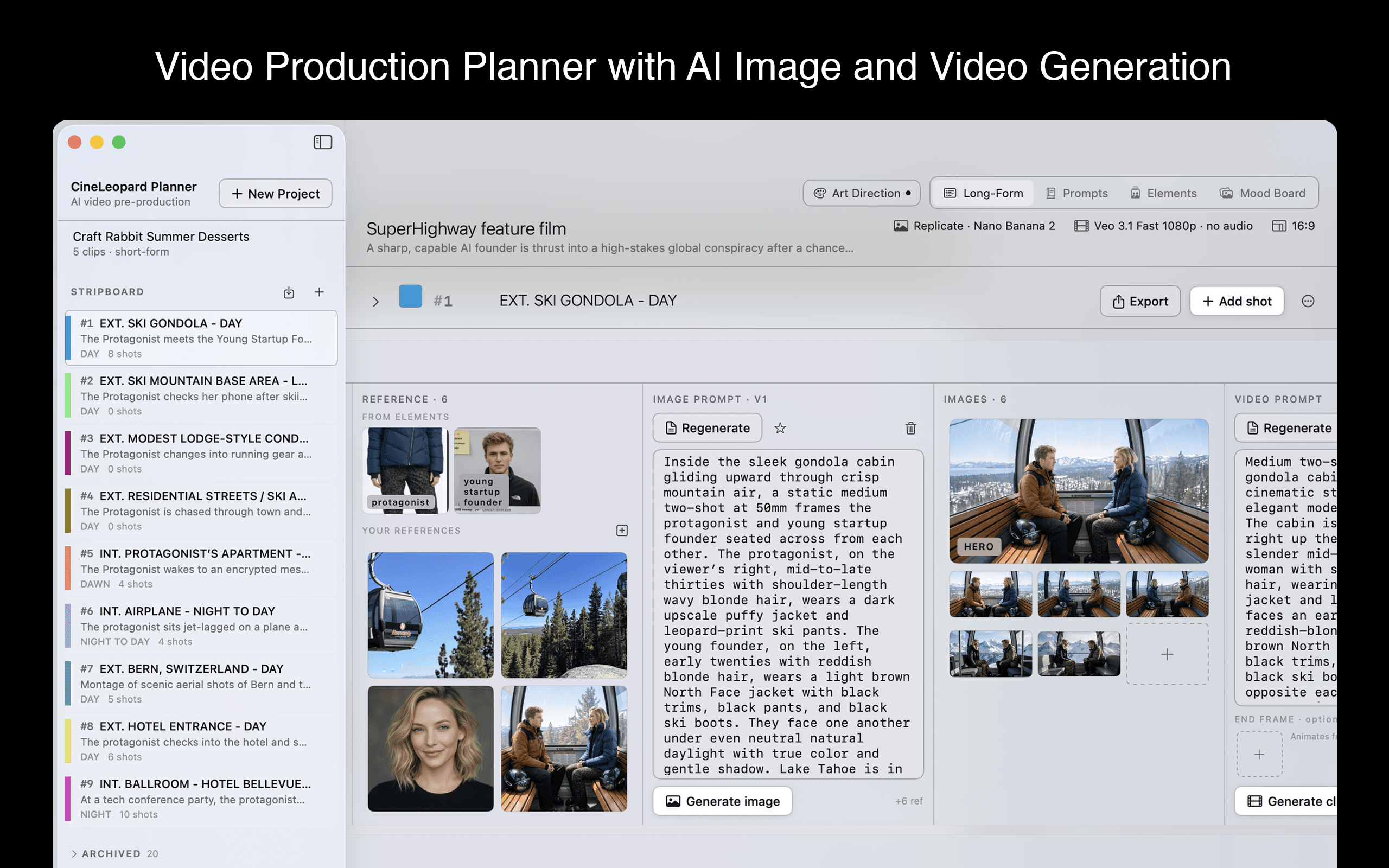
Color-coded stripboard with AI image and video generation
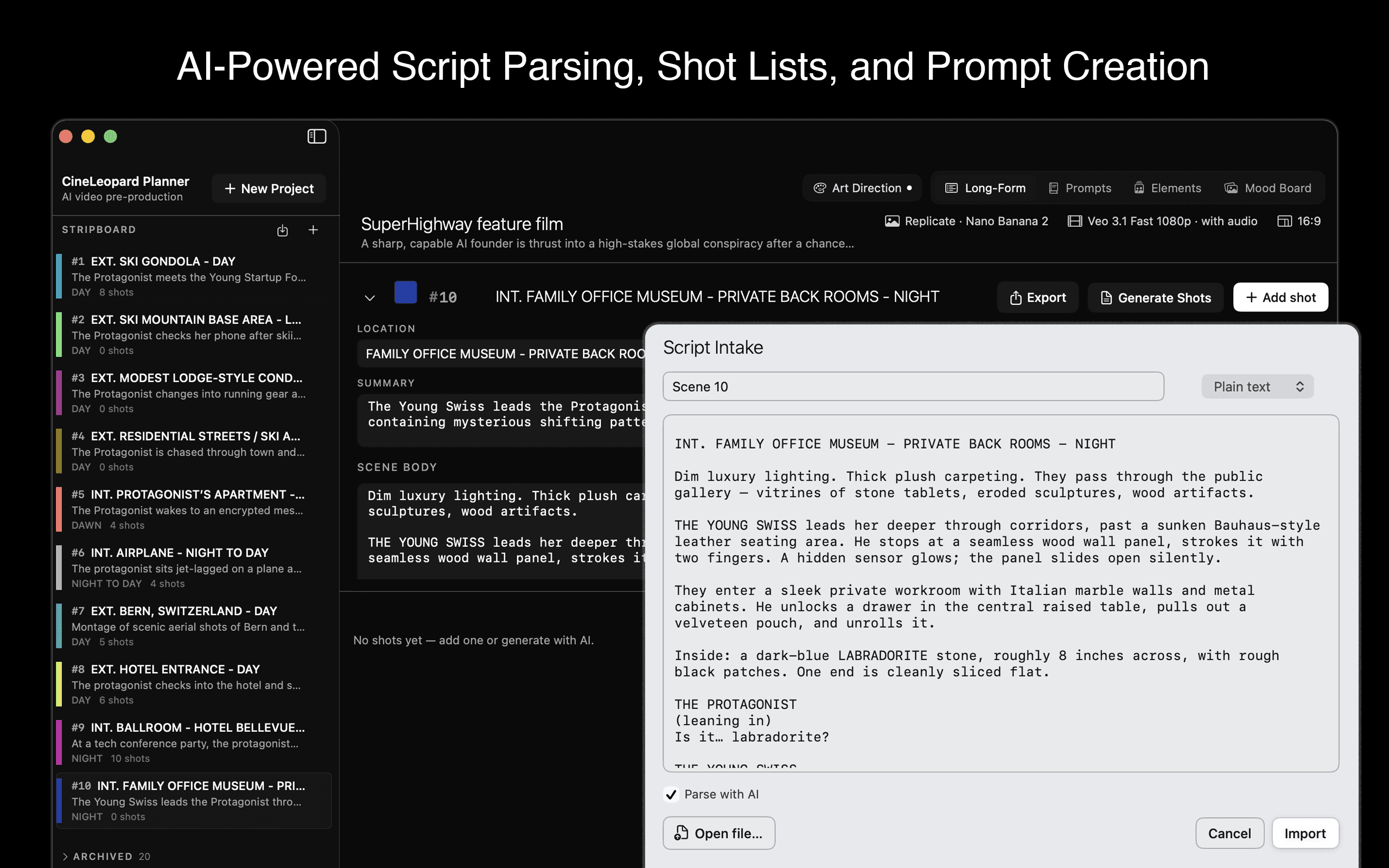
AI-powered script parsing into shot lists and prompts
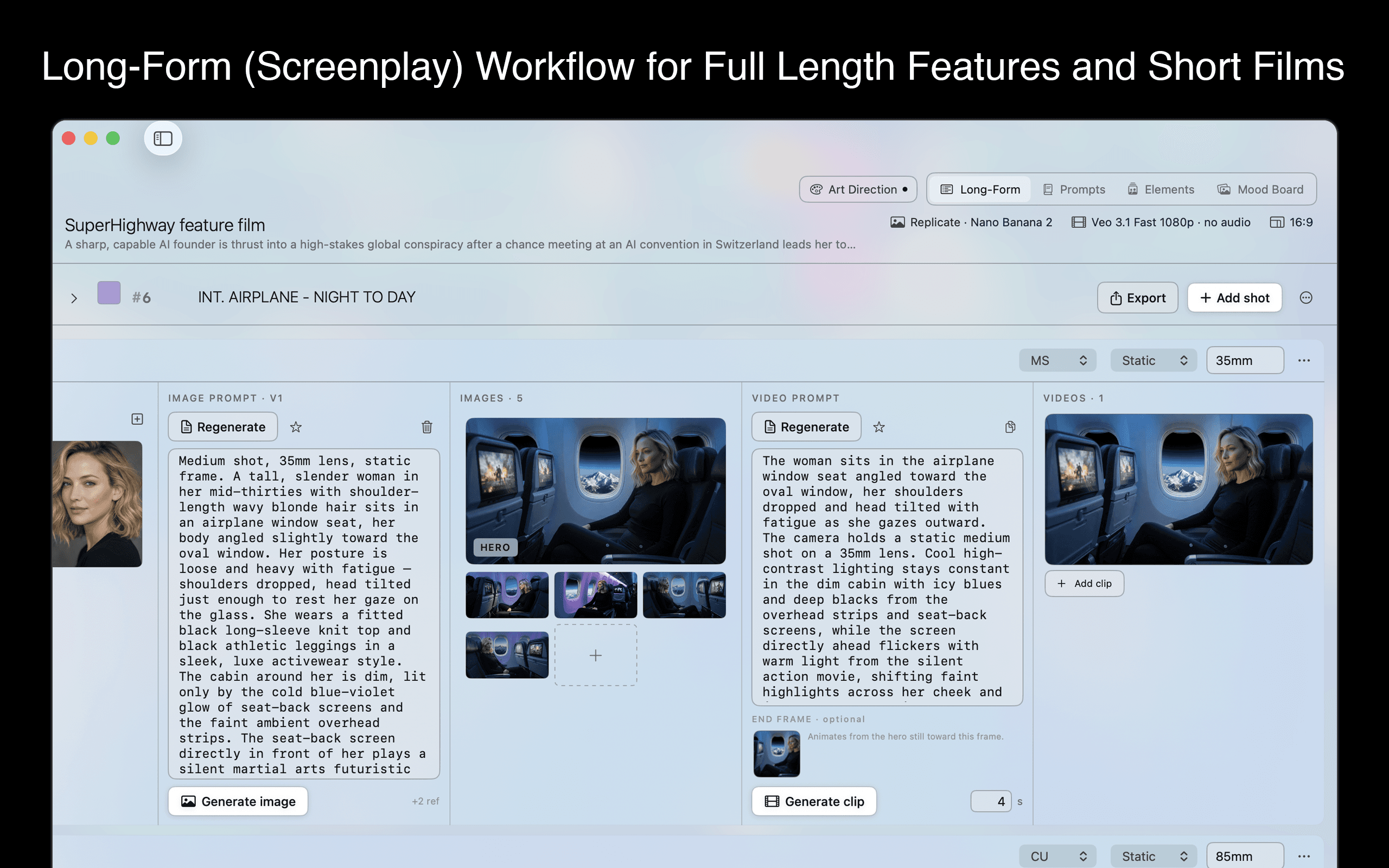
Long-form screenplay workflow for features and short films
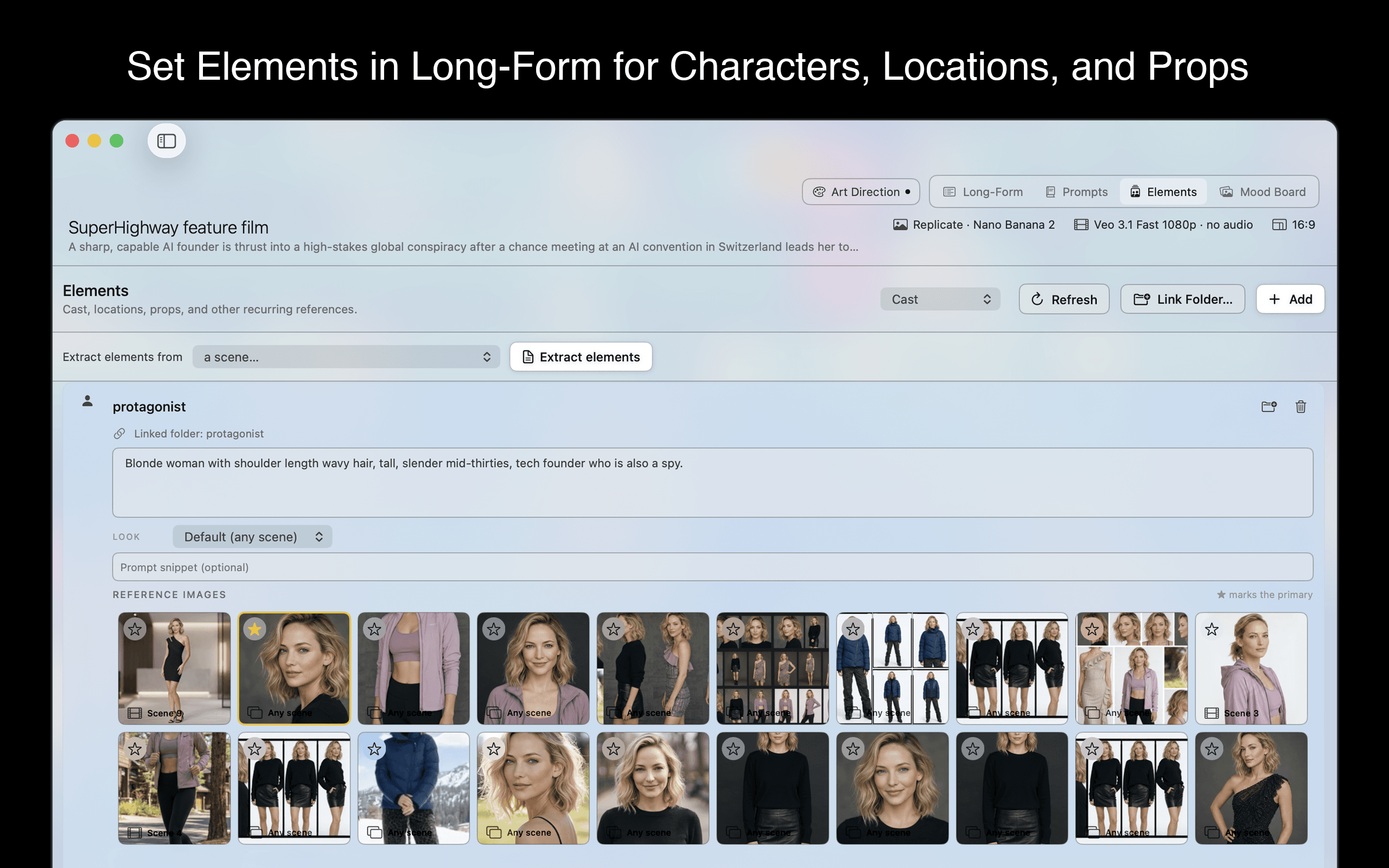
Elements library for characters, locations, and props
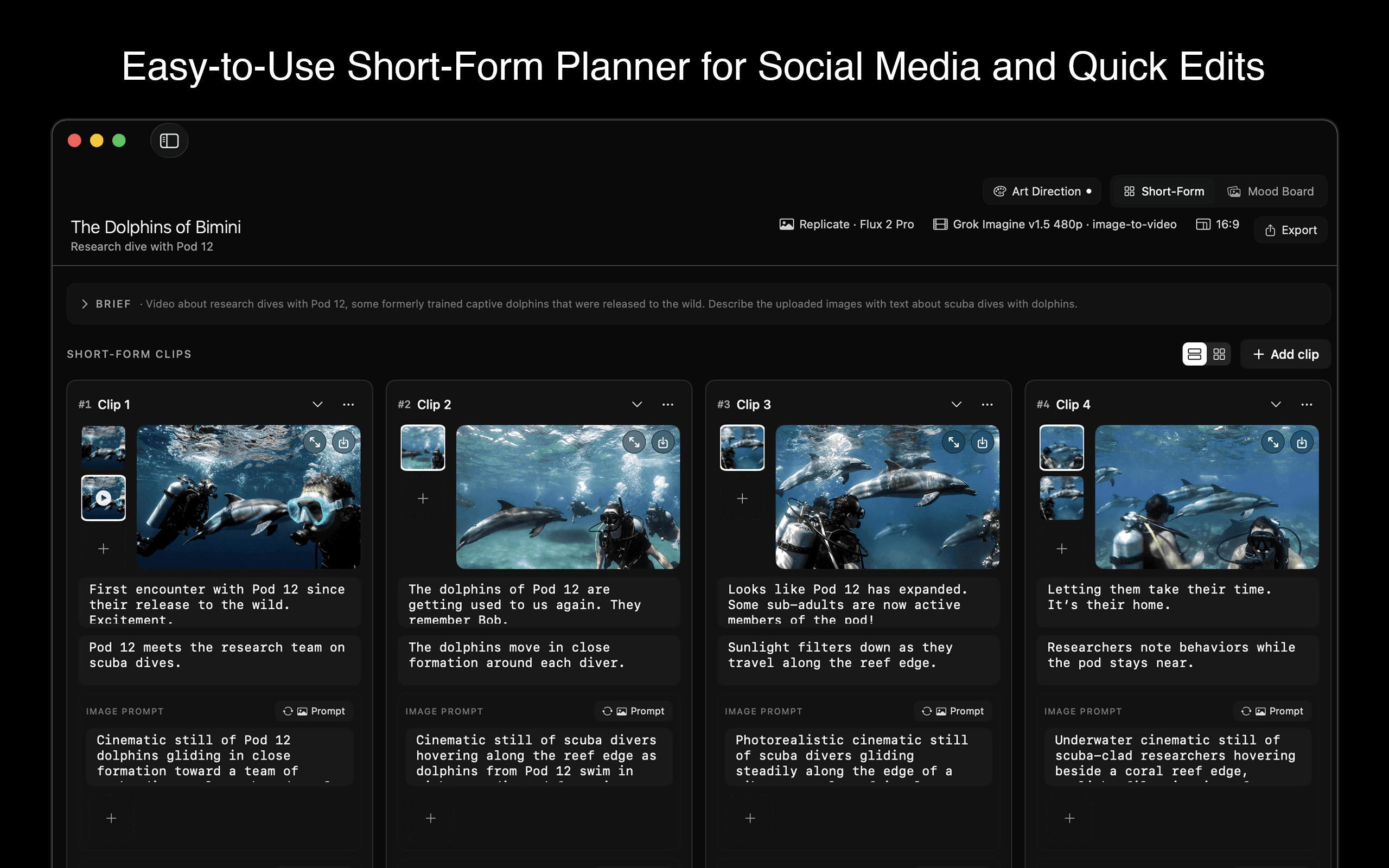
Short-form planner for social media and quick edits
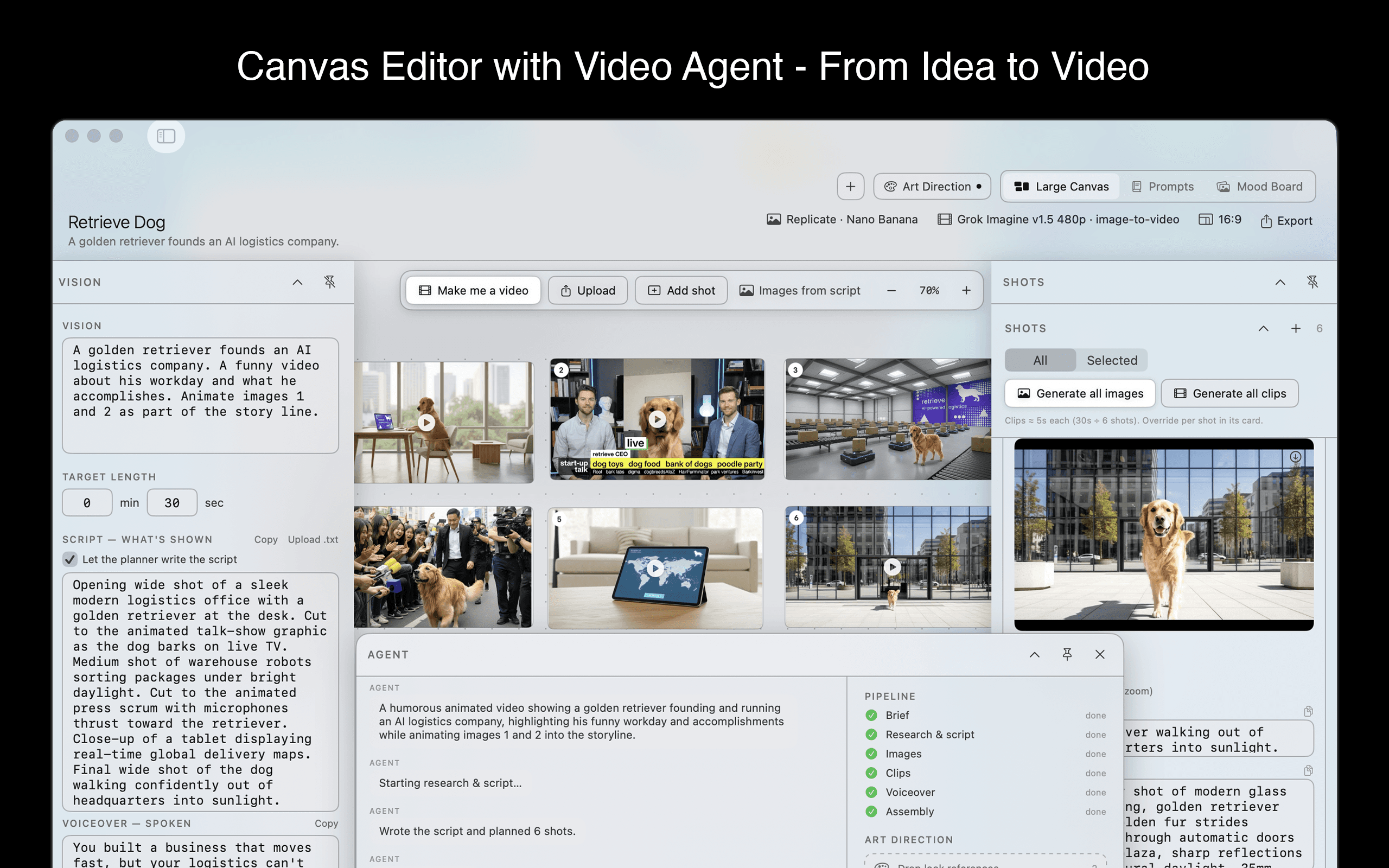
Large Canvas editor with the “make me a video” agent
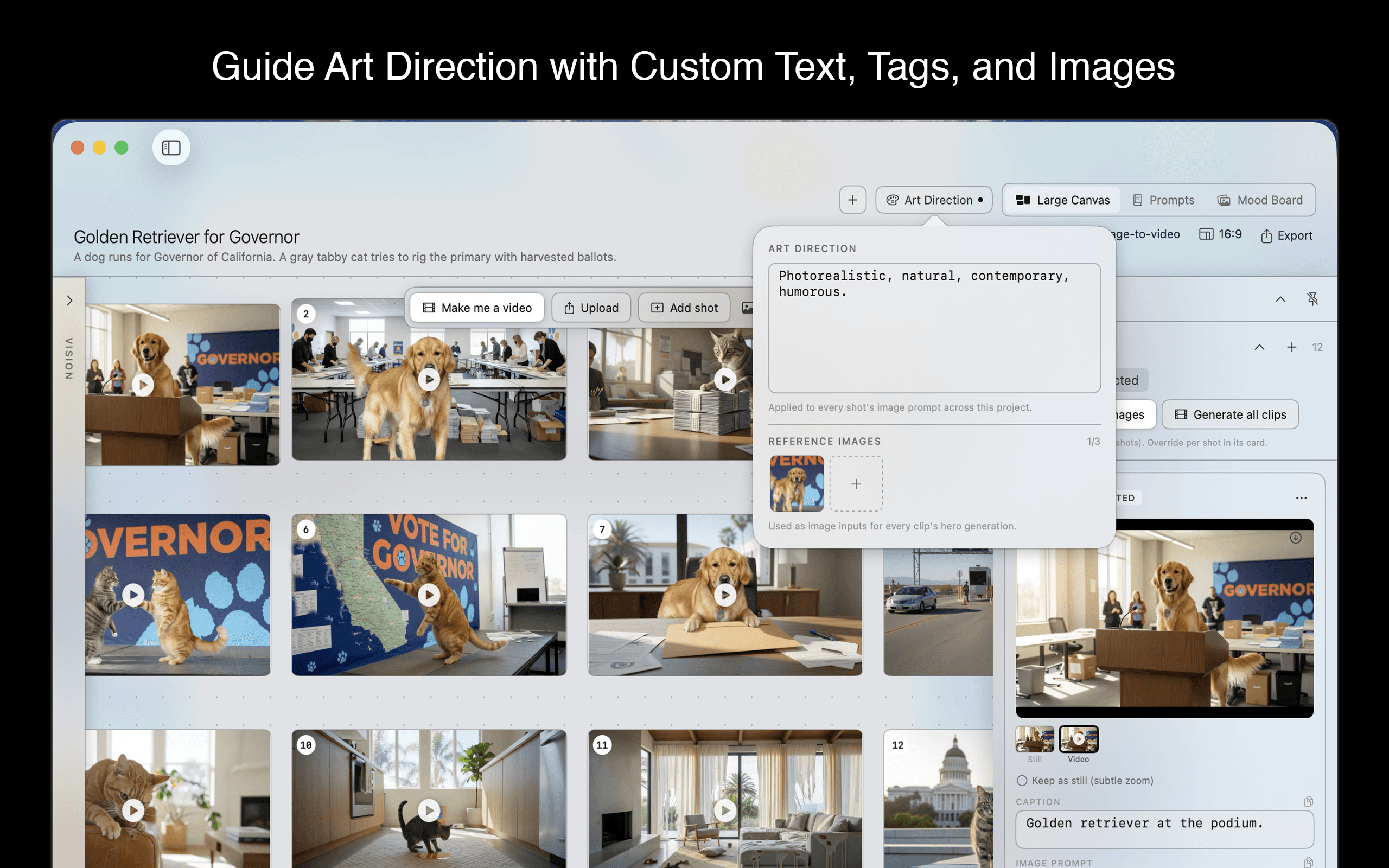
Guide art direction with custom text, tags, and images
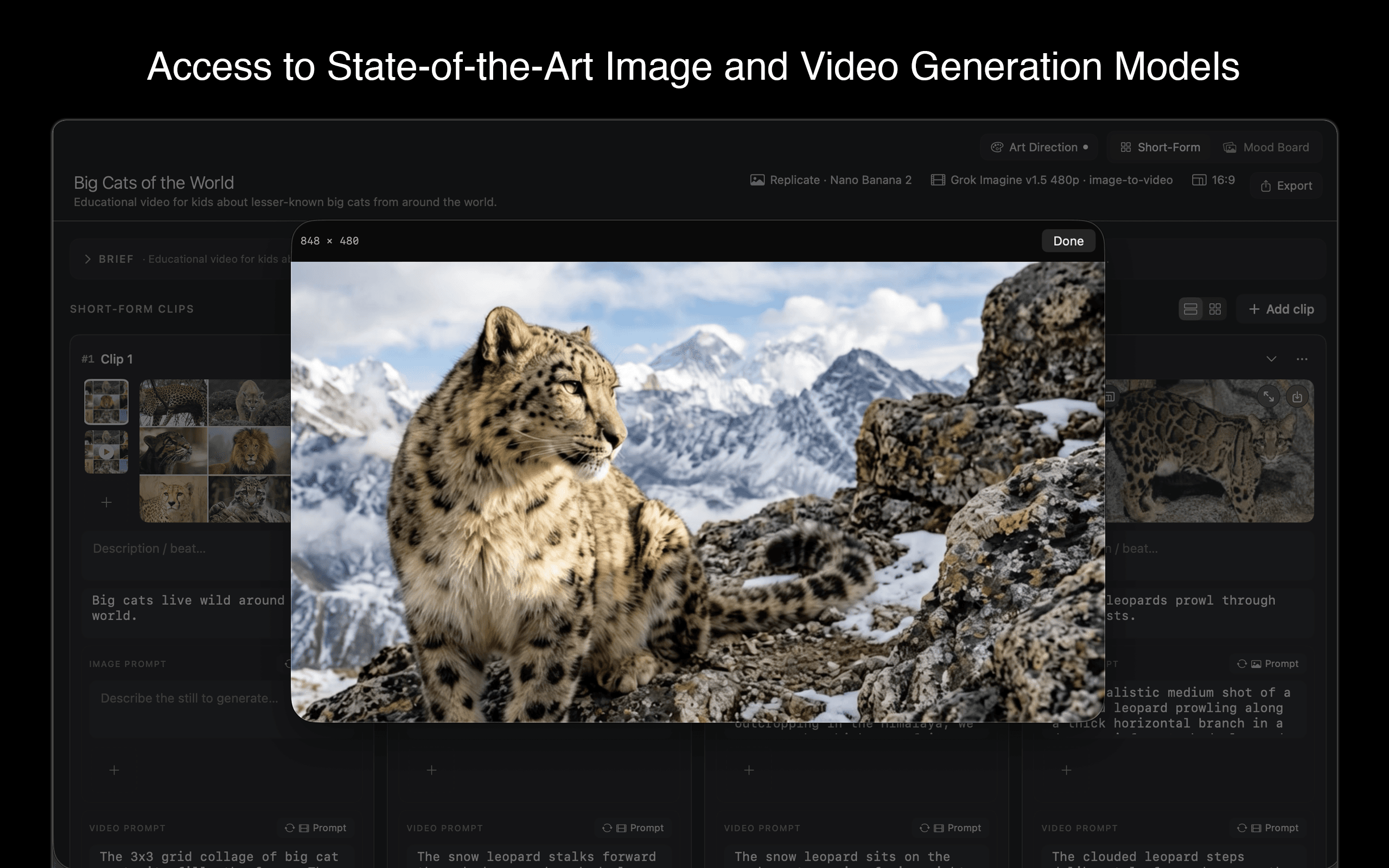
Access to state-of-the-art image and video models
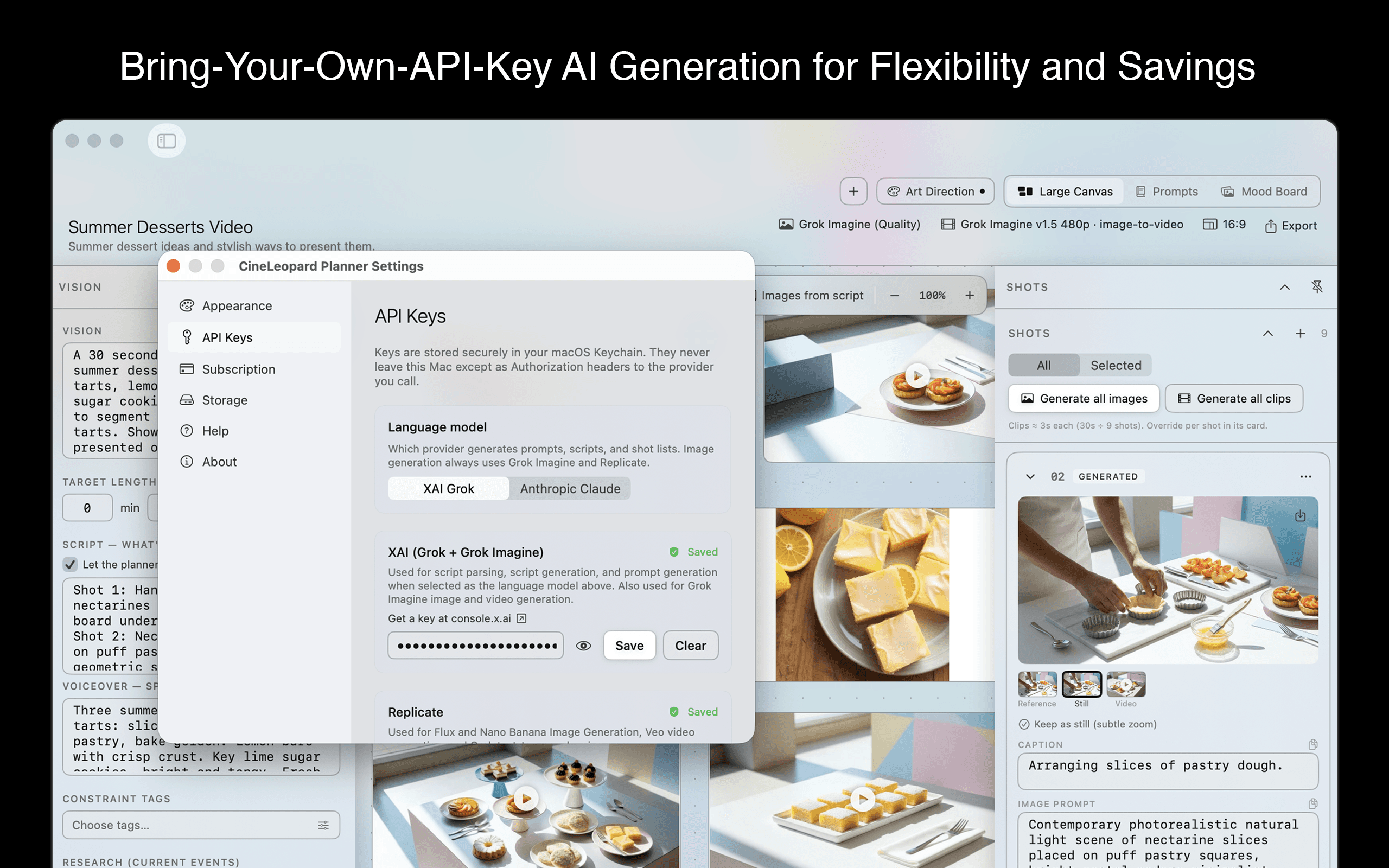
Bring-your-own-API-keys generation for maximum flexibility
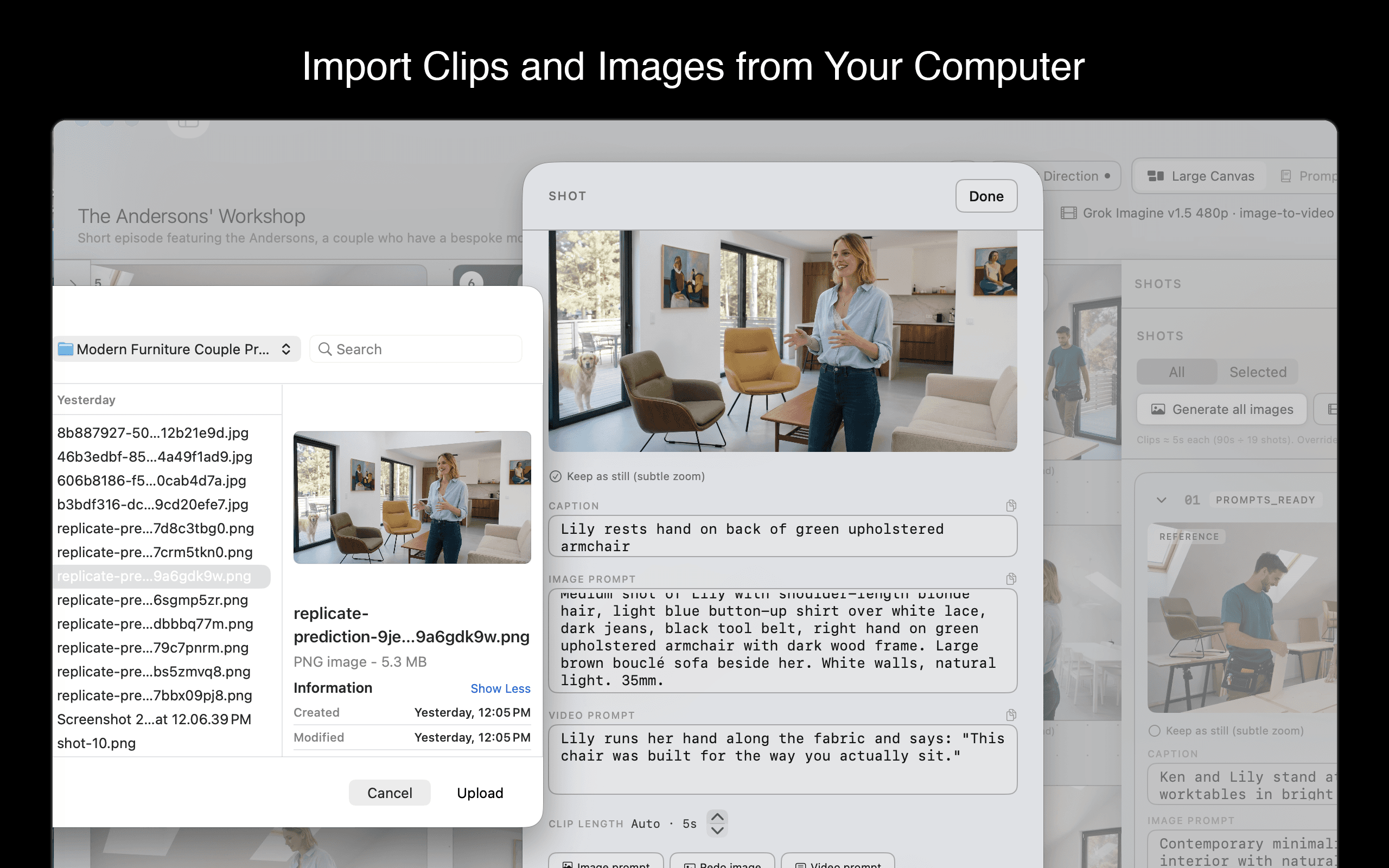
Import clips and images from your own computer
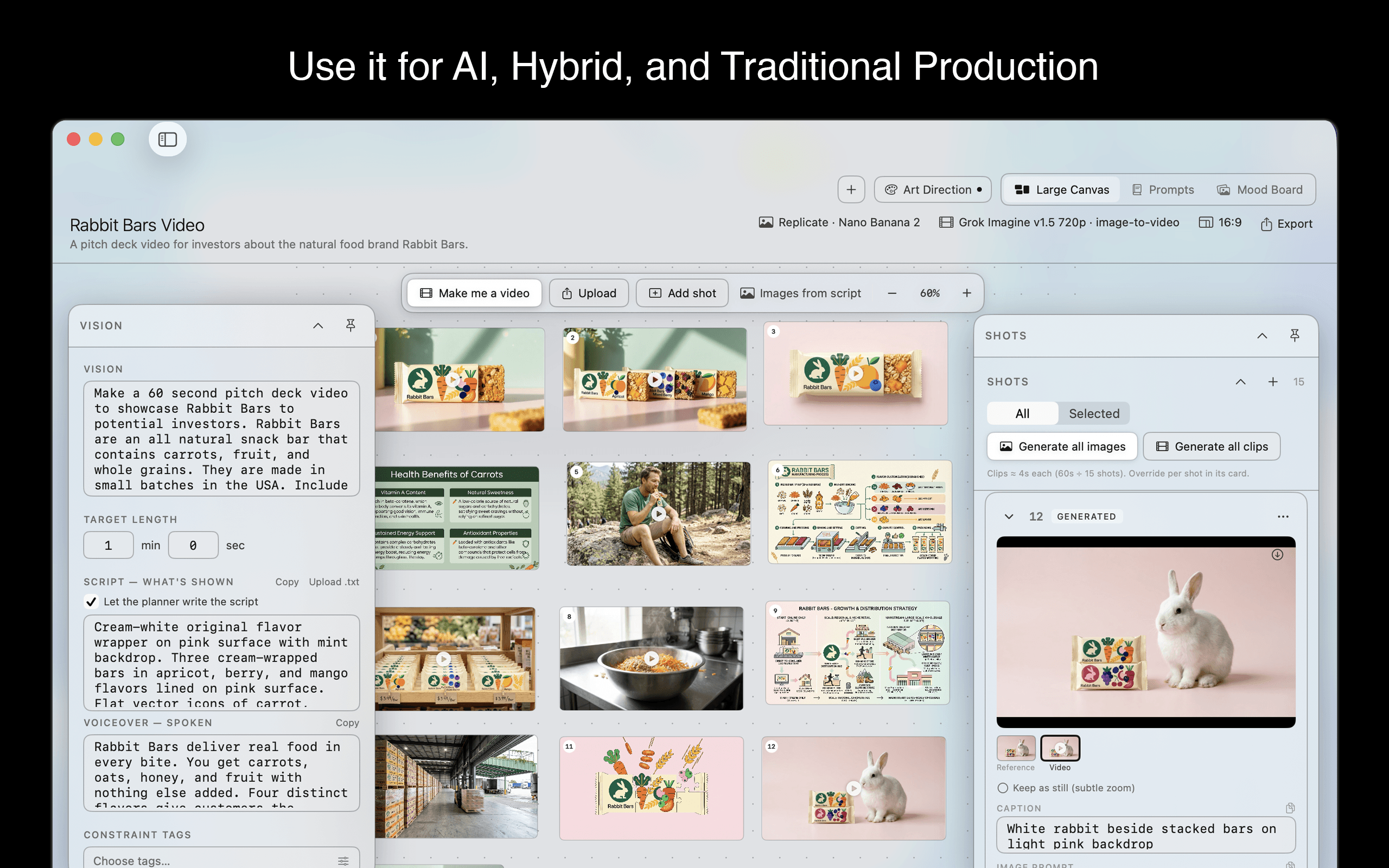
Use it for AI, Hybrid, and Traditional Production
Features
Turn a Script Into a Plan
Paste or import your script — or just a rough outline — and Production Planner organizes it into a clear, color-coded list of scenes. Each scene is tagged with the basics like time of day, indoor or outdoor, location, and who appears, so you can see your whole story at a glance.
Break Scenes Into Shots
Open any scene and split it into individual shots, by hand or with AI, each with its own description and notes. Mix in what you already have, like footage you filmed, photos you own, or images and video you made on other platforms, and fill the gaps with the AI tools built right into the app.
Text & Image Prompt Builder
Turn a shot into a structured image prompt with consistent style, wardrobe, and reference handling. Edit, refine, and reuse prompts across a project so your look stays consistent shot to shot.
AI Image Generation, Your Keys
Generate stills and reference images to use as image prompts using Grok Imagine, Grok Imagine 2.0, Flux 2 Pro, Nano Banana Pro, or Nano Banana 2 (the Large Canvas default). Every request uses your own API key and your own provider account.
Generate Video with SOTA Models
Generate video from reference images with Grok Imagine, from a start frame or references with Grok Imagine 1.5, as 720p or 1080p clips with Flux 3, or as 1080p clips with Veo 3.1 Fast. Host non-Grok models on Replicate or Fal; Grok Imagine uses SpaceXAI by default. Every request runs on your own API key.
Mood Boards & Reference Elements
Collect and save mood-board references to mood-board pages, and in Long-Form and Large Canvas, set up wardrobe, prop, and character references in an Elements library. Link a cast folder with look-named subfolders you choose, and Large Canvas picks the matching look per shot. References stay where they live, on your Mac.
Short-Form & Canvas Workflows
Plan short-form pieces on a grid, or use the full-width, infinite-length Large Canvas to lay out a multi-scene project where every item is a shot. The short-form planner also collapses into smaller clip tiles you can drag to rearrange.
Agentic “Make Me a Video” Workflow
On the Large Canvas, an agent walks a brief through script, image and clip prompts, and voiceover, then stitches your title card, clips, and voiceover into a finished video you can save to your computer. In creative mode the script is a real screenplay — visual beats plus quoted on-camera dialogue when characters speak. Prompt edits you type on a shot card stick. Prefer to polish it yourself? Export the separate clips and pieces and finish in an external editor.
Production Handoff Exports
Export a self-contained bundle from any workflow — prompts, stills, voiceover, and clips. Large Canvas timeline packages include timeline.json for CineLeopard, Project.xml for Final Cut Pro and DaVinci Resolve, a Media/ folder for linking, plus the same media layout. Separate Export menu items for general timeline packages and Resolve-friendly save locations.
Bring Your Own Keys
Production Planner is built around your own API keys for XAI, Replicate, Anthropic, and optionally Fal. Keys live in your Mac’s Keychain and are sent only as authorization headers to the provider you choose — never to us.
Local-First & Private
Every project, prompt, and image is stored locally in your Application Support folder. No accounts, no developer servers, no analytics. Built-in backup and restore keeps your work safe.
Why Production Planner
AI video tools are good at generating a single clip and bad at everything around it — keeping a look consistent, knowing which shots you still owe, and handing a coherent plan to whoever cuts the final piece. Production Planner is the missing pre-production layer: it organizes the work so the generation actually adds up to a film.
It is a native Mac app — SwiftUI and SwiftData, no Electron, no web views. Your projects live on your machine. There is no account to create and no server in the middle. The only network calls are the ones you trigger, going straight from your Mac to the AI providers you configured with your own keys.
When the plan is ready, Production Planner exports a clean handoff — prompts, stills, voiceover, and clips. From Large Canvas you can export a full timeline package: timeline.json for CineLeopard, Project.xml for Final Cut Pro and DaVinci Resolve, and a Media/ folder so external editors can rebuild the sequence.
System Requirements
What's Included
Pricing
$9.99/ month
Full access to every feature. Cancel anytime.
Subscriptions are billed and managed through the Mac App Store. You can cancel anytime from System Settings > Apple ID > Subscriptions.
Production Planner is a subscription for the app. AI generation uses your own API keys from XAI, Replicate, Anthropic, and optionally Fal — you purchase credits from those providers or they bill you directly for the usage you choose to run.
Frequently Asked Questions
How much does Production Planner cost?
Production Planner is $9.99 per month, billed through the Mac App Store, with full access to every feature. AI generation is billed separately by the providers you use, since you bring your own API keys.
Why do I need my own API keys?
Production Planner has no built-in account or server. To break down scripts and generate images and video, you supply your own keys from XAI (Grok and Grok Imagine), Replicate, optionally Anthropic, and optionally Fal. This means you control your usage and costs, and your content goes straight from your Mac to the provider you chose.
Where do my keys and projects live?
Your projects, prompts, and images are stored locally on your Mac. API keys are kept in the macOS Keychain, marked “this device only,” and are sent only as authorization headers to the provider you call. We never receive your keys or your work.
Does Production Planner generate or store video?
It generates video, but it does not host or store it for you. Using your own provider keys, the app generates images and video, stitches a finished video on the Large Canvas, and lets you bring in clips and footage you already have. Everything is saved locally to your own files — we never host or store your video.
Can I hand my project off to a video editor?
Yes. Every workflow can export prompts and media. On Large Canvas, Export → Timeline package writes a full package (timeline.json, Project.xml, Media/, clips). Use Export → Final Cut Pro to start the save dialog in Movies → Final Cut Exports, or Export → DaVinci Resolve for Movies → DaVinci Resolve (Media Storage). Package contents are the same; the destination only makes import easier for each app.
How do I import into DaVinci Resolve?
Export via Export → DaVinci Resolve (or use the helper copy under Movies → DaVinci Resolve → CLPP-Exports if you saved elsewhere). In Resolve’s Edit page: File → Import → Timeline… and open Project.xml. Leave “Automatically import source clips into media pool” on. If Resolve reports clips not found, choose Yes and select the DaVinci Resolve Media Storage folder that contains your package — that dialog only lists Media Storage volumes from Preferences → System → Media Storage, not your whole disk. You can Add… your export parent there permanently. Do not drag Project.xml onto the Media Pool.
How do I import into CineLeopard or Final Cut Pro?
CineLeopard: File → Import Timeline Bundle… and select the package folder that contains timeline.json (any save location is fine). Final Cut Pro: prefer Export → Final Cut Pro so the package is under Movies → Final Cut Exports, then File → Import → XML… and open Project.fcpxml or Project.xml; keep Media/ next to that file.
Can I use Anthropic (Claude) for text generation?
Yes. In Settings → API Keys, pick Grok (xAI) or Anthropic as the language model, then choose a specific model (Grok 4.6 / 4.5, or Claude Sonnet 5 / Opus 5 / Fable 5). That choice writes plans, scripts, and shot prompts. Image and video models are separate selectors at the top of each project.
Can I run models on Fal instead of Replicate?
Yes. Settings → API Keys has an Image / video backend control: Replicate or Fal. That is where Nano Banana, Flux, Veo, and other non-Grok models run. A SpaceXAI toggle (on by default) keeps Grok Imagine stills and clips on your xAI key, including Imagine 1.5 image-to-video and 1.5 ref-to-video. Add a fal.ai key only if you switch the backend to Fal.
How do wardrobe occasion folders work?
In Large Canvas, link a character folder that has look-named subfolders — you choose the names, and each subfolder becomes a labeled look. The agent holds a look until the script switches, then feeds the matching plate. A single primary photo still works as before — subfolders are only for multi-outfit characters. You can also set a Look chip on each extra reference in Elements.
If I edit a shot-card prompt, does the agent overwrite it?
No. Once you edit the image prompt on a Large Canvas shot card, later agent or planner passes leave that wording alone. A full New Plan or a new agent script run is what rebuilds prompts. Click a still or clip in the strip to inspect it; right-click to set the hero used for Make clip and for assembly.
Does creative mode write a real screenplay?
Yes, when the planner writes the script. The Vision-panel script is a screenplay you can read: action lines plus quoted on-camera dialogue under character cues whenever someone speaks. Narration stays in the separate voiceover field and is what goes to the voice model. If you paste your own script, dialogue is kept verbatim.
Do I need an account or login?
No. Production Planner does not require account creation or login. Your subscription is tied to your Apple ID and verified locally on your Mac via Apple’s StoreKit framework. Nothing is sent to our servers.
How do I cancel or get a refund?
Cancel anytime from System Settings > Apple ID > Subscriptions on your Mac. Refunds are handled by Apple at reportaproblem.apple.com — we never receive payment information.
How do I reset a room map or site plan?
In Large Canvas or Long-Form, open the Elements tab and find the Location card. Use Clear site map or Clear room map on that location to discard the AI-built layout so the next agent plan rebuilds it from your current reference photos. To reset every location at once, use Clear all place maps in the Elements header. Changing a location’s primary reference image also clears stale maps automatically. Clearing a map does not delete your reference photos.
Why does the project list reorder when I open a project?
By default projects stay in date-created order so opening or editing one does not move it to the top. Use the sort control (up/down arrows) next to PROJECTS in the sidebar to switch to Name, Recently updated, or Manual order. In Manual order, right-click a project to Move Up or Move Down.
Can I pause the agent or undo an accidental cancel?
Yes. While a step is running, use Pause or Cancel in the agent panel. Pause finishes the current still or clip (so a generation you are already charged for still lands), then stops before the next one. During Research & script, Pause waits until that whole planning step finishes, then stops before Images. Finished steps stay on the canvas — click Continue run to resume without starting over. After a pause the start-of-run text box is hidden on purpose, because Continue does not replan from new words; use New run for a full restart. Use Start over only when you want a completely clean agent slate.
Does the agent overwrite my Vision brief?
No. If the Vision rail already has text, the agent keeps it and combines it with what you type in the agent box. The agent box does not wipe Vision. Draft text you type for the agent is also kept if you switch to Elements or another tab and come back.
What does New Plan do on Large Canvas?
New Plan rebuilds the shot list and image/video prompts from Vision, script, and Elements. If the scene already has prompts, stills, or clips, you get a confirmation first. Vision text, Elements, and Art Direction are kept. Export or back up first if you need existing generated media on those shots.
How does art direction work with location photos?
Location reference photos own architecture and layout. Art direction still steers light, exposure, atmosphere, and design taste — even when locations are set. Art direction images apply at generation time; art direction text is baked into prompts when you plan, so replan or edit prompts after changing AD wording.
Can I add background music to an assembled video?
Yes, on Large Canvas. Music is off by default. Turn on the Music toggle in the Vision panel, optionally describe a style, and make sure a Replicate key is saved. The agent can generate an instrumental bed, or Assemble Video will create one when Music is on and none exists yet. The bed is mixed low under voiceover and clip audio.